This page shows how you can customize your version of SAS 9.2 for Windows.
How do I set up a different WORK directory for SAS?
Sometimes, the default location for SAS temporary WORK directory may not be
large enough. You can change the location for WORK directory before you start up SAS.
The easiest way to do it may be to modify the parameters for sas.exe. Here is
how to do it.
Step 1. Right click on the icon of SAS and choose Properties. This will
bring up a window called SAS Properties shown below.
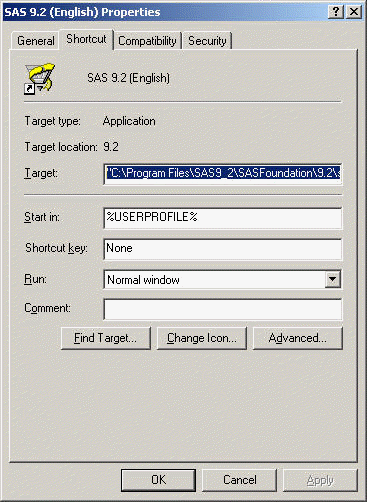
Step 2. Choose the Shortcut Menu.
The Target field tells us where the sas.exe is located and what
parameters it takes. In this example, it looks like:
"C:Program FilesSAS9_2SASFoundation9.2sas.exe" -CONFIG "C:Program FilesSAS9_2SASFoundation9.2nlsenSASV9.CFG"
This tells us that the executable sas.exe is located in the folder
C:Program FilesSAS9_2SASFoundation9.2 and it uses the default configuration
file SASV9.CFG located in the folder C:Program FilesSAS9_2SASFoundation9.2nlsen.
Step 3. Let’s say that we want to change the WORK directory to D:temp. In the Target field,
we can add "-work "D:temp"
at the end. Then the target line becomes
"C:Program FilesSAS9_2SASFoundation9.2sas.exe" -CONFIG "C:Program FilesSAS9_2SASFoundation9.2nlsenSASV9.CFG" -work "D:temp"
Click on the OK button.
That’s all to it. Now after you fire up SAS,
you can double check if the WORK directory has been set up to the location you
want. For example, you can do:
proc options option=work;
run;
1    proc options option=work;
2    run;

    SAS (r) Proprietary Software Release 9.2  TS1M0

 WORK=d:temp_TD4532
                   Location for WORK SAS data library
You may notice that SAS has actually created a subfolder in the directory that we
have specified. This is because SAS allows multiple sessions (that is to say
that you can fire up SAS multiple times) and each session will require its own
temporary work space. SAS will create a unique temporary WORK directory for each
of the multiple sessions in D:temp.
How do I set up my own data libraries permanently?
Very often, you have a libname statement at the beginning of your SAS program file to specify the location of your SAS data files. You can set up a
permanent library associated with the location so every time when SAS starts, it will make the data files in the location available to you. For example, I have
stored many SAS data files in the folder called d:workdatasas on my machine and I want to set up a permanent library so the data files in the folder can be
seen and used directly every time I use SAS. Here is what I can do.
- Double click on the Libraries
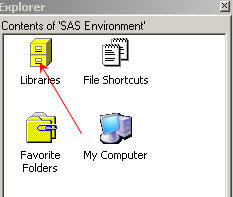
You see all the default libraries that SAS has created.
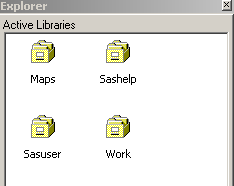
- Right click in the open area and choose New.
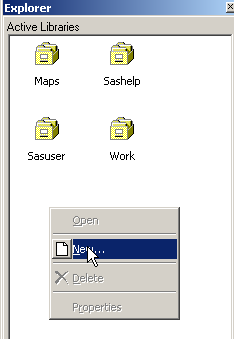
- Give a name to your library, in this case, I named it "ats". Check the button for "Enable at startup" and locate the folder location via the Browse
button.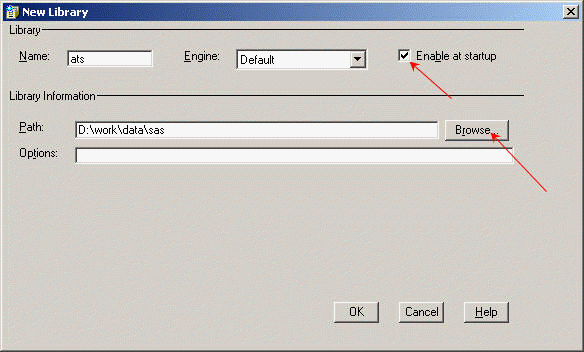
- Click on OK and now we have one more library:
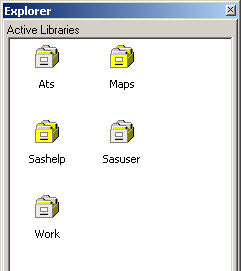
- You can click on any of these active libraries to see its content.
How do I view SAS sample programs?
SAS has sample programs for data steps and all the procedures. This is a huge resource for learning SAS at all levels. An easy way to access these program
files is to create our own Favorite Folders for them. Here is an example for creating a folder that contains all the sample programs for SAS/STAT module.
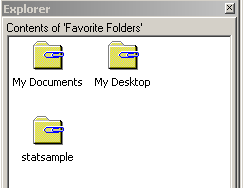
- Click on the icon for Favorite Folders
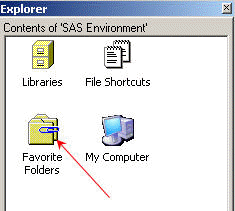
- It might look like the following with only the two default folders.
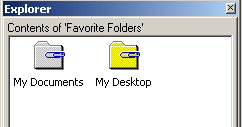
- Right click in the open area and choose "New Favorite Folder…"
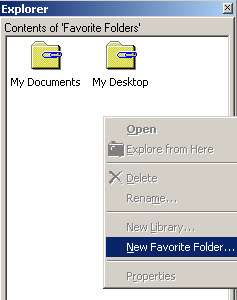
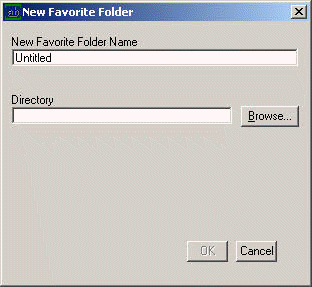
- I first named the new Favorite Folder as "statsample" and then use the "Browse" button to locate the folder. You can trace down where the folder of
SAS sample programs for SAS/STAT similar to the following:
C:Program Files -> SAS9_2 -> SASFoundation -> 9.2 -> stat -> sample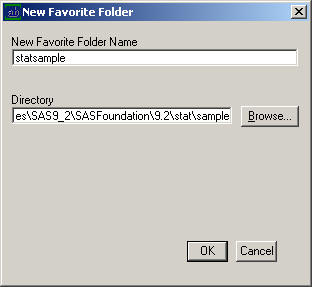
- Click on OK and the new folder "statsample" is created.
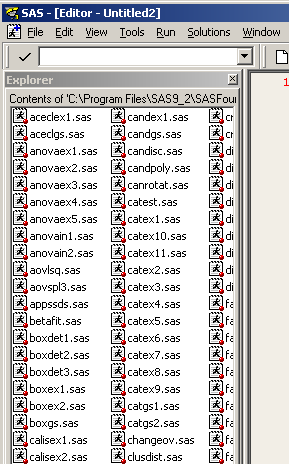
- Click on the folder "statsample", we will see all the SAS sample programs from SAS/STAT module (see below.)
How do I display numbers along the left side of the Program Editor Window?
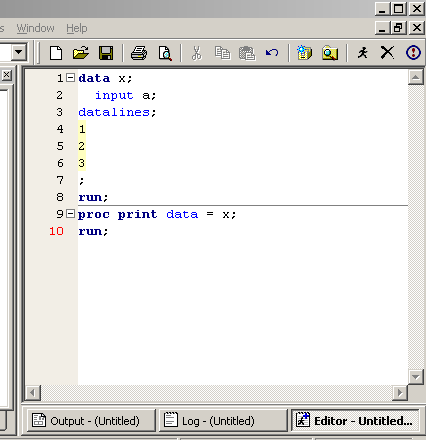
Some people prefer to have line numbers along the program as shown
below.
This can be done as follows.
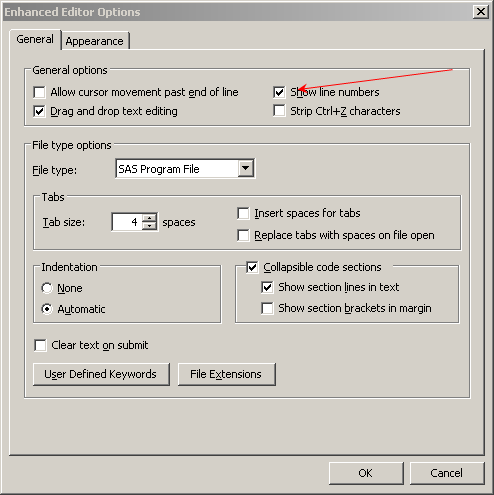
Notice that the Enhanced Editor Window (usually it is the Editor Window) has
to be in focus in order to see the its options in the following steps.
Tools
Options
Enhanced Editor Options Choose
Show line numbers
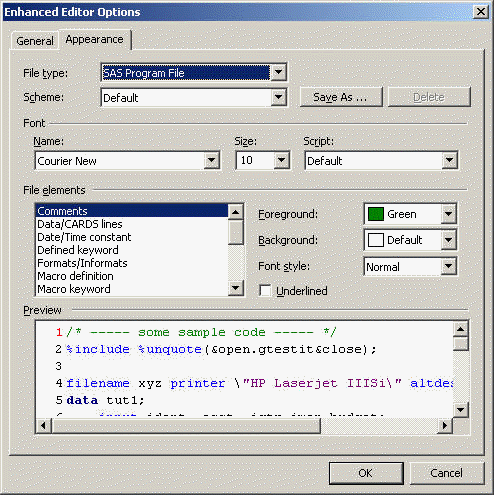
How do I change the appearance of my program editor window?
After starting SAS, click on the Editor Window so it is on focus. You can
customize almost every aspect of the Editor Window, such as the color and font
for comments, etc. You can save your choice as a customized scheme.
Tools
Options
Enhanced Editor Options
Appearance
How do I create a webpage for the output from a procedure?
Sometimes, it may be desirable to create a webpage directly from the output
from a procedure. For example, we have run a regression analysis and have also
requested a plot as shown below. How do we put the output of the regression
analysis and the plot together in one webpage?
proc reg data = hsb2;
  model write = math female;
  plot pred.*math = female;
run;
quit;
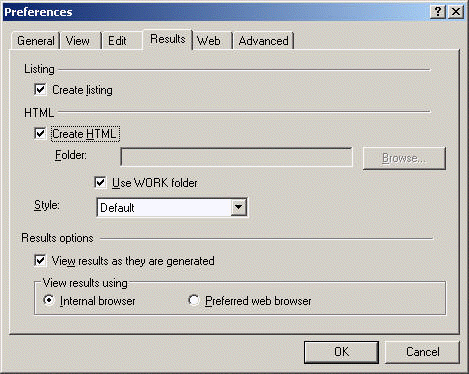
This can be down easily by allowing SAS to create an HTML page automatically.
You may want to consider to turn the option on ONLY when you want to create a
webpage based on the output.
Tools
Options
Preferences and then the
Results tab
Check Create HTML. You
can view the results in the SAS internal browser (by default). If you
wish, you can choose Preferred web browser
and it will fire up a new web browser each time you submit a program and
generate results.
Here is the link to the page that SAS created
based on the output from the code above.
How do I know the Function Key Commands?
There are many pre-defined keys in SAS to be used other than via
point-and-click fashion. Most common one may be F3 key to run a SAS
program in a Program Window that is on focus. The commonly used keys are:
| Key | Definition |
| F1 | SAS System Help |
| F3 | Submit |
| F5 | Editor Window |
| F6 | Log Window |
| F7 | Output Window |
| F8 | Zoom off; submit |
| F9 | Show definition of keys |
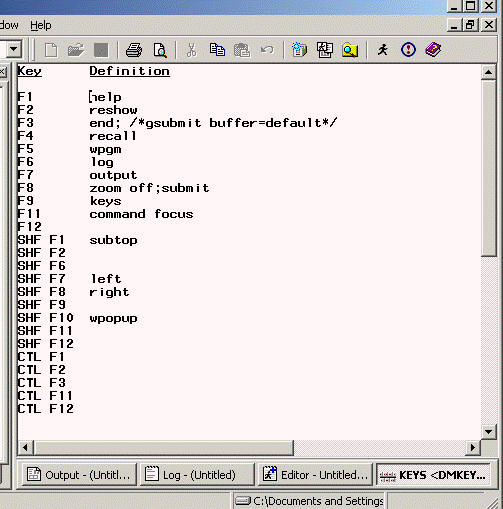
For example, by hitting F9 key, you will see a window like the one below: