
1.0 Updating and installing patches
Periodically SAS releases patches to fix bugs. Sometimes SAS will
bundle these together into service packs to make them easier to download and
install. To check for hot fixes and service packs you can go to the
SAS support
website.
2.0 Checking the version
From the menu bar at the top of the SAS window, click on Help, and then About
SAS 9.
-
Help
   About SAS 9
The information on which version of SAS you are running is in the first
section labeled “Software Information.”
3.0 Getting help
If they were installed, you can access the help files from within
SAS 9.4:
-
Help
   SAS Help and Documentation
The SAS help and documentation is
also available via the internet.
4.0 How to “kill” a job (i.e., stop the job before it finishes running)
Sometimes you may begin a job in SAS and need to stop
it before it has finished running. You might want to “kill” a job if a procedure is taking
inordinately long and you think something is wrong, or if your code
accidentally produces an infinite loop. To “kill” the job, simply click on
the circle with an exclamation point inside it, located in the bar of icons
at the upper right hand side of your SAS window.

5.0 How to find missing windows
Sometimes windows may seem to disappear. This can happen in several ways: you can
click out of the window so another window is covering it, SAS can automatically move you
to another window, or you can close the window without meaning to. If one of the first two
scenarios has taken place, your window is simply covered up by another window, and can be brought to
the front using the tabs at the bottom of your SAS window.If the missing window doesn’t show up in the tabs at the
bottom of your screen, you may have accidentally closed the window. To restore
the window, you can select log or
output from the view menu (as described below) to get the window back. If
the window in question is anything other than an editor window, none
of the information in file will have changed. If you accidentally close
an editor window, you can use the view menu to open a new editor window, but
you will lose any unsaved changes to your program. If you saved your program
before you closed the editor window, you can use the file menu to open the
program file in the editor.
-
View
   click on the appropriate item
6.0 Customizing SAS
For information on how you can customize SAS see our
page Customizing SAS
9.2.
7.0 How to get SAS
If you are a member of the UCLA community, SAS 9.4 can be downloaded from Software Central (see contact information below).
To purchase SAS
If you are a member of the UCLA community, the current version of SAS can be purchased from Software Central.
A list of programs available from Software Central is available from
http://www.softwarecentral.ucla.edu/product_list.htm.
Software Central can be contacted by phone at 206-4780 or 825-7402, or via
email at SoftwareCentral@ucla.edu.Please see http://support.sas.com/resources/sysreq/hosts/pc/ for a list of current Windows operating systems on which SAS is supported.
To use SAS in a computer lab on campus
- Locations Available to All Students
– The CLICC lab has SAS available
– CLICC Virtual Desktop- Locations Available to Some Students
– Social Science Computing Labs (only for those in the Social Sciences) has
SAS available on the PC
– Social Science
Unix Machines (only for those in the Social Sciences) has
SAS running on Nicco and Aristotle.- Other Lists of Locations
-The CLICC maintains a list
of labs on campus for more labs on campus that may have SAS.
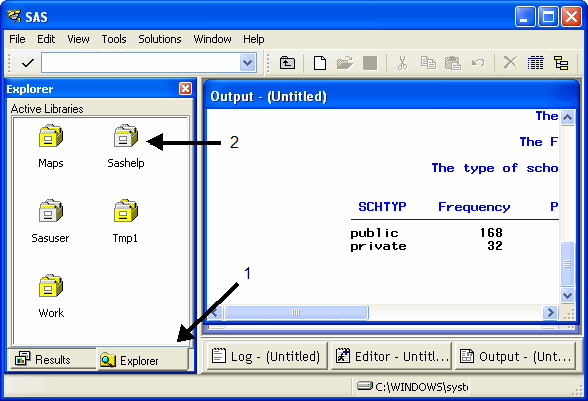
8.0 Accessing the SAS help and example datasets
SAS comes with all of the datasets that appear in the examples
and documentation. To access these datasets, first click on the Explorer tab at the
bottom left of your SAS window. If the “Active Libraries” are currently
displayed, double click on the icon labeled Sashelp. If the “Active
Libraries” are not currently displayed, you will need to navigate to it. If
you start out in the “Contents of ‘SAS Environment,” you can access the
“Active Libraries” by clicking on the icon labeled “Libraries.” If you are
currently viewing another library, you can move up one or more levels by
clicking on View and then on Up One Level. The Sashelp library
and the folders within it contain all of the example datasets.
9.0 Finding and managing ODS output
In SAS 9.4, output in the SAS windowing environment is created by default in HTML. In addition, ODS Graphics is enabled by default. LISTING output is the default in previous releases and when you run SAS in batch mode in SAS 9.4. HTML output in the SAS windowing environment is the default in SAS 9.4 for Microsoft Windows and UNIX, but not for other operating systems. Your actual defaults might be different because of your registry or configuration file settings.