
There are at least two ways that an SPSS license can be renewed. All
methods assume that you have the authorization code for the upcoming
licensing period. If you need assistance in obtaining an authorization
code and are a UCLA researcher, please contact
Software Central . The
following instructions work for SPSS versions 15 and 16 for Windows.
Method 1: Using the authorization wizard
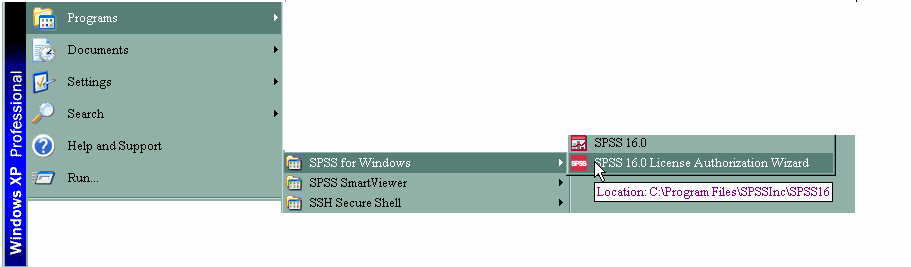
For most installations of SPSS, a link to an authorization wizard is easily
accessible, and this can be used to renew the license. This link is found
in the same location as the link to start SPSS (Start -> Programs -> SPSS).
Method 2: Using batch mode
In some cases, the link to the authorization wizard is not easily accessible.
In such cases, it may be simpler to use batch mode to renew the license than
trying to find the link to the authorization wizard.
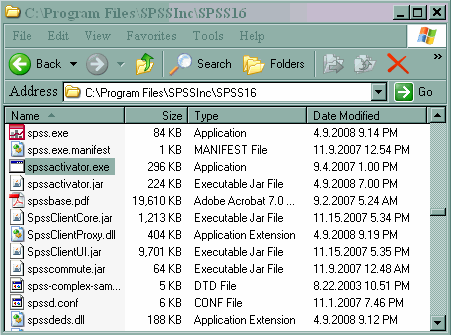
In order to renew the SPSS license in batch mode, you will need to know where
a file called spssactivator.exe is located. If the defaults were
accepted when SPSS was installed, this file is located on the C: drive in the
Program Files folder. From there, look for a folder called SPSS or SPSS
Inc. The spssactivator.exe file should be located in that folder.
Please do not click on the file (it does not activate the authorization
wizard).
Once you have found this file, you need to run it. To do this, click on
Start and then Run. Type cmd in the box to open a command window.
Once the command window is open, you will need to change directories to point to
the directory where spssactivator.exe is located. You can type
dir spssa*
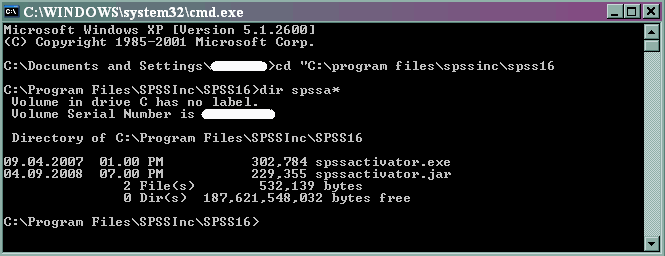
to see a listing of the files that begin with spssa to be certain that the
file is there. Next, type
spssactivator {your authorization code}
without any brackets. Follow the prompts that appear. Please note
that your computer will need to be connected to the internet to complete the
license renewal process.
Once you have followed the prompts and renewed your SPSS license, you may
want to check that everything worked correctly. To do this, simply open
SPSS and a syntax window (you can open a syntax window by clicking on File ->
New -> Syntax) and type
show license.
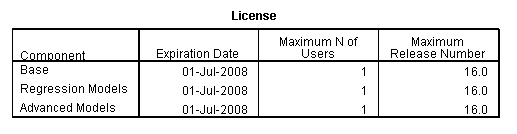
Highlight and run this command (by clicking on the right-pointing arrow at
the top of the syntax window), and you will see which SPSS modules you have
licensed and when the license will expire.
If you need assistance in obtaining an authorization code and are a UCLA
researcher, please contact
Software Central .