
| cd | Change directory |
| dir or ls | Show files in current directory |
| insheet | Read ASCII (text) data created by a spreadsheet |
| infile | Read unformatted ASCII (text) data |
| infix | Read ASCII (text) data in fixed format |
| input | Enter data from keyboard |
| import excel | Import Excel .xls or .xlsx file |
| describe | Describe contents of data in memory or on disk |
| compress | Compress data in memory |
| save | Store the dataset currently in memory on disk in Stata data format |
| use | Load a Stata-format dataset |
| count | Show the number of observations |
| list | List values of variables |
| clear | Clear the entire dataset and everything else |
2.0 Demonstration and explanation
A) Preparing the workspace
A1. Changing the working directory
We start by changing the working directory, which is the default directory (folder) from which Stata will read files and to which Stata will write files. We can read/write to a directory different from the working directory by specifying a full path name when reading/writing files. We use the cd command to change directories and then dir or ls to list the contents of the directory.
cd w:     /* note: directory and path may differ on your computer */
dir
A2. No dataset can be loaded while another dataset is in memory
In Stata, we can only have one dataset loaded in memory at a time. Before another dataset can be loaded, we must erase all data from memory using the clear command. We can also clear memory as we load in another dataset using the clear option on one of the data-loading commands (see below)
clear
B) Use import delimited to read in delimited data from other sources
B1. Comma-separated file with variable names
Our first data will come as a spreadsheet, often managed or created by programs such as Excel. For example, in
Excel, we can save data as a comma-separated-values format (.csv) file, which is a text file with fields separated by commas. Here is a how a .csv file might appear:
gender,id,race,ses,schtyp,prgtype,read,write,math,science,socst
0,70,4,1,1,general,57,52,41,47,57
1,121,4,2,1,vocati,68,59,53,63,61
0,86,4,3,1,general,44,33,54,58,31
0,141,4,3,1,vocati,63,44,47,53,56
0,172,4,2,1,academic,47,52,57,53,61
0,113,4,2,1,academic,44,52,51,63,61
0,50,3,2,1,general,50,59,42,53,61
0,11,1,2,1,academic,34,46,45,39,36
0,84,4,2,1,general,63,57,54,,51
0,48,3,2,1,academic,57,55,52,50,51
The command import delimited can read text files in which the fields are separated by any character, such as spaces, commas or tabs. The command reads the first line of the data file to automatically indentify the character used as the separator (the separator can be explicitly specified with the delimiter option). Imagine we have a data file, hs0.csv, located in our current working directory. Here are the Stata commands to read these data. We use the describe command to check if the input was successful.
import delimited using hs0.csv,  clear
describe
B2. Comma-separated file without variable names
If the first line of the data does not contain the variable names, we must supply the names to the import delimited command.
Let’s try to read such a file called hs0_noname.csv.
import delimited gender id race ses schtyp prgtype read write math science socst using hs0_noname.csv, clear
describe
B3. Delimited files in general
We can use the import delimited command to read text files where the fields are separated by any character, such as spaces or tabs. Here is a snapshot of the datafile, hs0.raw.
0	70	4	1	1	general		57	52	41	47	57
1	121	4	2	1	vocati		68	59	53	63	61
0	86	4	3	1	general		44	33	54	58	31
0	141	4	3	1	vocati		63	44	47	53	56
0	172	4	2	1	academic	47	52	57	53	61
0	113	4	2	1	academic	44	52	51	63	61
The columns are left-justified, suggesting that the file is tab-delimited. However, some columns (namely columns 6 and 7) may have 1 or 2 tabs between them — it can be hard to tell by visual inspection. We explicitly tell Stata that the delimiter is a tab in the datafile using the delimiter option, and use the suboption collapse to treat multiple tabs as one delimiter. This file has no variable names, so we must supply them again:
import delimited gender id race ses schtyp prgtype read write math science socst using hs0.raw, delimiter(tab, collapse) clear
C) Use infix to read in fixed format files
Another data format in which data can be stored is fixed format. It always
requires a codebook to specify which column(s) corresponds to which variable. Here is small
example of this type of data with a codebook. Notice how we make use of the
codebook in the infix command below. We will use the
schdat.fix data file.
        195  094951
        26386161941
        38780081841
        479700  870
        56878163690
        66487182960
        786  069  0
        88194193921
        98979090781
       107868180801
| variable name | column number |
| id | 1-2 |
| a1 | 3-4 |
| t1 | 5-6 |
| gender | 7 |
| a2 | 8-9 |
| t2 | 10-11 |
| tgender | 12 |
Below we use the infile command, where we specify variable names and the column numbers that their corresponding values inhabit.
clear
infix id 1-2 a1 3-4 t1 5-6 gender 7 a2 8-9 t2 10-11 tgender 12 using schdat.fix
D) Use import excel to read in Excel files
The import excel command was introduce in Stata 12. Here is what the file hsbdemo.xlsx looks like.
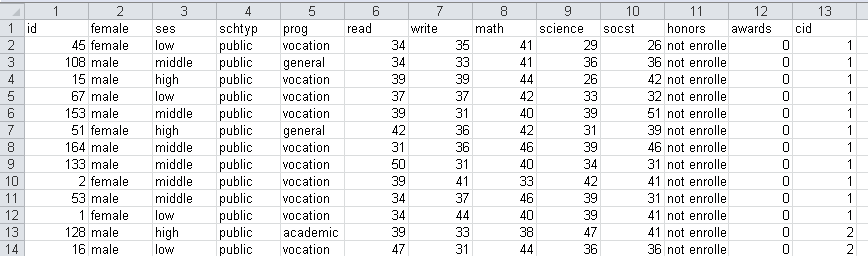
On the import excel command below, we specify the sheet where the data are located with the sheet() option and that the variable names are contained in the first row using the firstrow option.
import excel using hsbdemo.xlsx, sheet("hsbdemo") firstrow clear
E) Use input to enter data from the keyboard or a do-file
We can also use the do-file editor to input data. The do-file editor is used for
writing a sequence of commands and running them all at once. You can copy and paste
the following Stata syntax to the do-file editor and run it. You can also paste this directly into the Command window
clear
input id female race ses str3 schtype prog read write math science socst
147 1 1 3 pub 1 47 62 53 53 61
108 0 1 2 pub 2 34 33 41 36 36
 18 0 3 2 pub 3 50 33 49 44 36
153 0 1 2 pub 3 39 31 40 39 51
 50 0 2 2 pub 2 50 59 42 53 61
 51 1 2 1 pub 2 42 36 42 31 39
102 0 1 1 pub 1 52 41 51 53 56
 57 1 1 2 pub 1 71 65 72 66 56
160 1 1 2 pub 1 55 65 55 50 61
136 0 1 2 pub 1 65 59 70 63 51
end
After running the above program, we can issue the describe command to get a
general idea about the data set.
describe
F) The save command reads stores data as Stata data (.dta) files, and the use command loads Stata data files
We can save the data set we just created to disk by issuing the save command. This creates a .dta file when no extension is specified.
save hsb10
We can then load the data we just saved using the use command.
clear
use hsb10
use "W:\hsb10", clear
G) The use command can load files over the internet
The use command can also be used to read a data file over the
internet, which we will do throughout this seminar.
use https://stats.idre.ucla.edu/stat/data/hs0, clear
3.0 For more information
- Data
Management Using Stata: A Practical Handbook- Chapter 2
- Statistics
with Stata 12- Chapter 2
- Gentle Introduction to Stata, Revised Third Edition
- Chapter 2
- Data Analysis Using Stata, Third Edition
- Chapter 11
An Introduction to Stata for Health Researchers, Third Edition- Chapter 6
- Stata Learning Modules
- Frequently Asked Questions
- How can I convert files among SAS,
SPSS and Stata? - How can I input a dataset quickly?
- How
can I read Excel files in Stata? (Stata 12) - How
can I read Stata 12 data files in Stata 11? - How do I read a data file that uses
commas/tabs as delimiters? - How can I handle the No Room to Add
Observations Error?
- How can I convert files among SAS,