This page shows how you can customize your installation of SAS 9.x for Windows.
How do I set up a different WORK directory for SAS?
Sometimes, the default location for SAS temporary WORK directory may not be
large enough. You can change the location for WORK directory when you start up SAS.
The easiest way to do it may be to modify the SAS configuration file. For SAS 9.x, it is called sasv9.cfg, and, by default, it is found in C:\Program files\SASHome\SASFoundation\9.x\nls\en. Note that this will be different if you are using a non-English version of SAS. Also, it is a good idea to make a back up of the configuration file before you modify it.
Below the scary warning “/* DO NOT EDIT BELOW THIS LINE – INSTALL Application edits below this line */
find the line that says
-WORK “!TEMP\SAS Temporary Files”
and change to read
-SET TEMP “C:\WORK”
where “C:\WORK” is the drive and folder you want to use for the SAS WORK directory.
To be sure that your change worked, you can submit the following program:
proc options option=work;
run;
You may notice that SAS actually created a subfolder in the directory that we
have specified. This is because SAS allows multiple sessions (that is to say
that you can fire up SAS multiple times) and each session will require its own
temporary work space. SAS will create a unique temporary WORK directory for each
of the multiple sessions in C:\WORK.
How do I display numbers along the left side of the Program Editor Window?
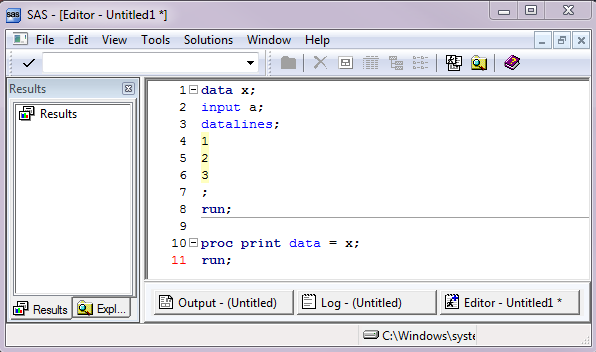
Some people prefer to have line numbers along the program as shown
below. This can be done as follows. Note that the Enhanced Editor Window (usually it is the Editor Window) has
to be the active window in order to see the options shown in the following steps. (To make the window active, simply click in the window.)
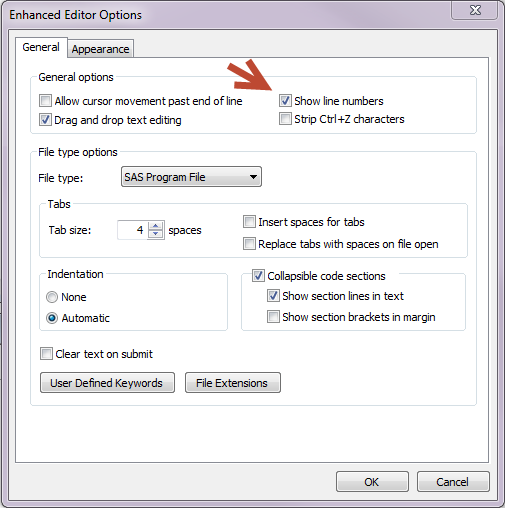
Tools
Options
Enhanced Editor Options Choose
Show line numbers
How do I change the appearance of my program editor window?
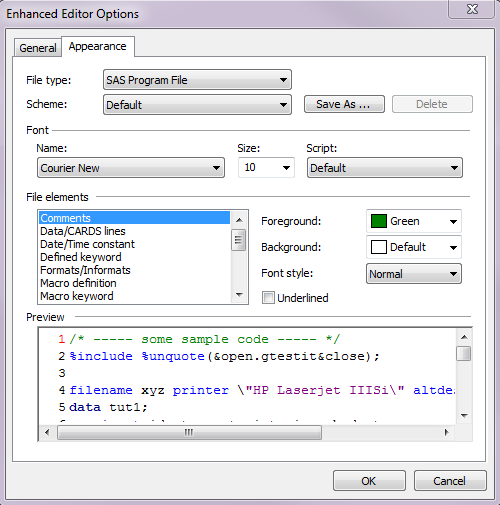
After starting SAS, click on the Editor Window so it is on focus. You can
customize almost every aspect of the Editor Window, such as the color and font
for comments, etc. You can save your choice as a customized scheme.
Tools
Options
Enhanced Editor Options
Appearance
How do I create a webpage for the output from a procedure?
If you want to create a webpage directly from the output
from a procedure, you can. For example, we have run a regression analysis and have also
requested a plot as shown below. How do we put the output of the regression
analysis and the plot together on one webpage?
proc reg data = hsb2;
model write = math female;
plot pred.*math = female;
run;
quit;
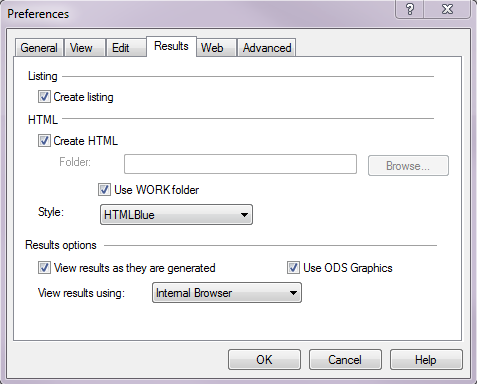
This can be down easily by allowing SAS to create an HTML page automatically.
You may want to consider turning on the option ONLY when you want to create a
webpage based on the output.
Tools
Options
Preferences and then the
Results tab
Check Create HTML. You
can view the results in the SAS internal browser (by default). If you
wish, you can choose Preferred web browser
and it will fire up a new web browser each time you submit a program and
generate results.
Here is the link to the page that SAS created
based on the output from the code above.
How do I know the Function Key Commands?
There are many pre-defined keys in SAS to be used other than via
point-and-click fashion. Most common one may be F3 key to run a SAS
program in a Program Window that is on focus. The commonly used keys are:
| Key | Definition |
| F1 | SAS System Help |
| F3 | Submit |
| F5 | Editor Window |
| F6 | Log Window |
| F7 | Output Window |
| F8 | Zoom off; submit |
| F9 | Show definition of keys |
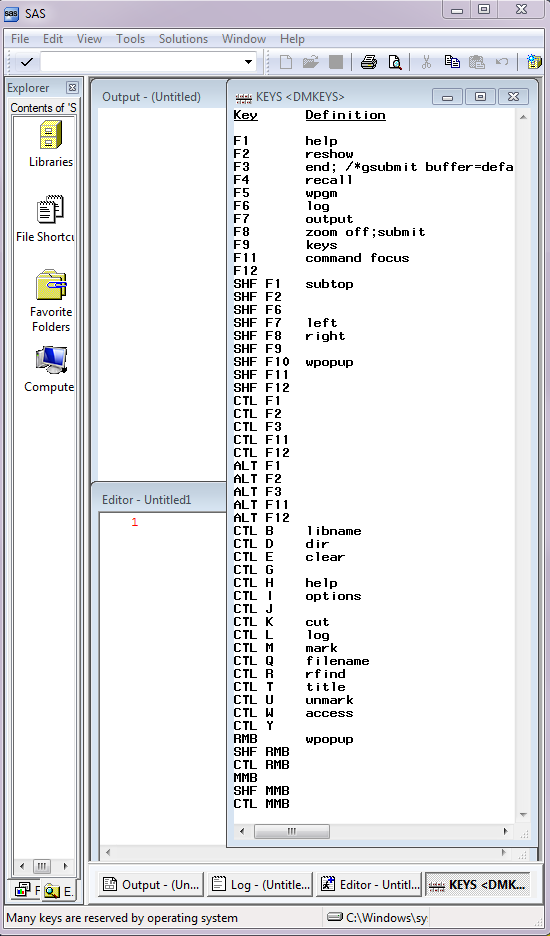
For example, by hitting F9 key, you will see a window like the one below: