Stat/Transfer is a program that makes it very easy to convert files from
one file format to another file format (for example, from a SAS data file to a Stata data
file). You can get your own copy of Stat/Transfer at academic pricing.
Please see the How to Get Stata page which includes information
about how to get Stat/Transfer.
You can visit the
The Stat/Transfer web site for
more information, including
Stat/Transfer for Unix Documentation
Download a demo of Stat/Transfer .
For more information, please visit FAQ: How do I convert among SAS,
Stata and SPSS? .
How to convert only part of a data set
Sometimes, you may want to or have to transfer only part of your data set
from one format to another format instead of the entire one. For example, you
have a data set of hospital patients and you only want to use the subset of
female patients. Other occasions, you have to trim down your data set so to
fit in a specific statistical package. For example,
LimDep only allows 199 variables.
- Subsetting observations
In Stat/Transfer, there are a couple of categories to choose. One of them
is called Observations. You can click on that one, and Stat/Transfer
will list all the operators you can use to subset your data set. Let’s take a
look at an example. We have a dataset called hs2.sav in SPSS format with 200
observations and we want to convert it into Stata format. There is a variable
called FEMALE in the data set. Let’s say that we want only the females in that
data set, that is, we want observations with FEMALE=1. This can be done in
Stat/Transfer easily. Once we have entered the correct path to our data set in
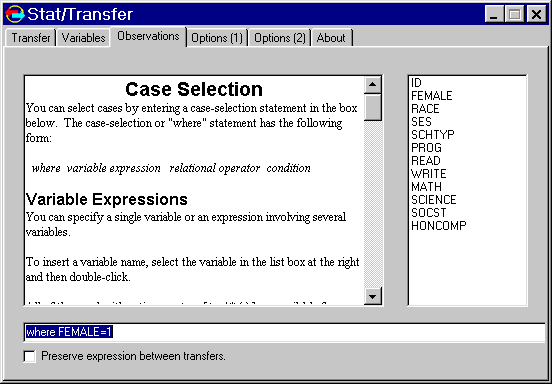
Transfer dialog box, we can then click on the Observations tag
and enter FEMALE=1 at the bottom where dialog box as shown
below.
Notice that on the right hand side, we see all the variables in the
data set. We then go back to the Transfer dialog box and proceed to
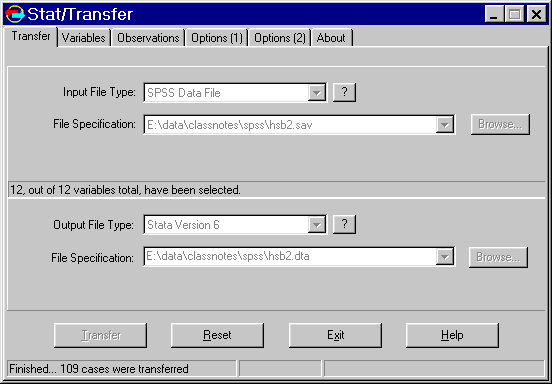
transfer. At the bottom of the screen shot below, Stat/Transfer tells us
that 109 observations were transferred.
- Subsetting variables
Similarly, you can choose variables that you want to convert using the Variables
dialog box.Let’s look at an example. We have a data set called test.sav in SPSS
format. It has 401 variables and 1000 observations. We want to convert the
data set into LimDep for Windows format. We first put the correct path to the
data file in Transfer dialog box. At this point, if we try to transfer,
Stat/Transfer will pop up a dialog box giving us warnings that the limit on
number of variables in LimDep for Windows is 199 and the data set has 401
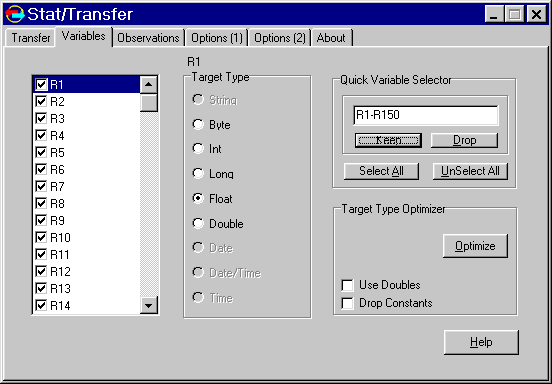
variables. Let’s say we really only need the first 150 variables, R1-R150. We
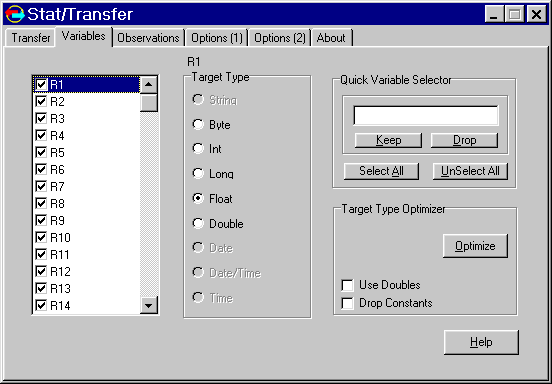
want to select only those variables.We now click on the Variables tag and following window is present.
Notice that all the variables are selected by default. We need first to
click the UnSelect All button to unselect the variables and then enter
the variable names that we want to select and then click the Keep
button shown below.
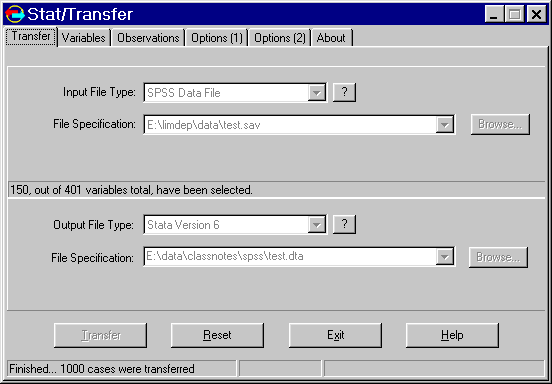
Returning back to Transfer dialog box, we can do the transfer now by
clicking on the Transfer button. Stat/Transfer tells us that 150
variables out of 401 have been selected and 1000 observations have been
transferred.