If your copy of SAS has expired,
you will not be able to update SAS within SAS
and you need to update the SETINIT.SAS file
differently. You probably received your setinit in an
email message. You will have to save it to a file called setinit.sss
on your machine. Make sure the version for setinit.sss is the right version
for your copy of SAS on the machine.
Update SAS 8.2
Let’s say that we received the setinit for version 8.2 in an email and have
saved it as setinit.sss on the desktop. From the desktop, or wherever the
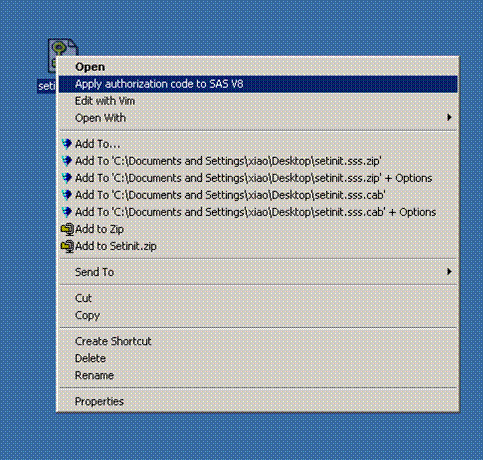
setinit.sss locates, right click on the setinit.sss icon, and you will see a
choice "Apply authorization code to SAS V8". Clicking on that will trigger SAS
to update itself automatically. The status of update is saved in a file called
setinit.sss.log and you can open it with a text editor to double check if
the update is a sucssess.
Update SAS 8.0 and 8.1
You can use Update SAS License Information icon. Following are the step-by-step
instructions to replace and update the file. Assume that the setinit.sss
file has been saved to a floppy disk.
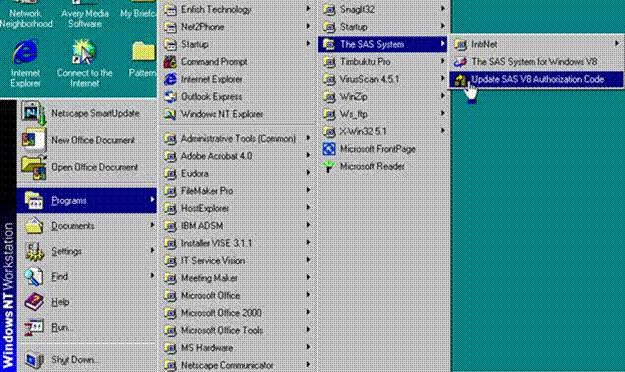
1. Start Update Icon
From Start Menu, select Programs > The SAS System > The SAS
System for Windows V8 >
Update SAS V8 Authorization Code
NOTE: Every version of SAS (6.x & 7.x) has
this Update icon, which you can find in the
same way.
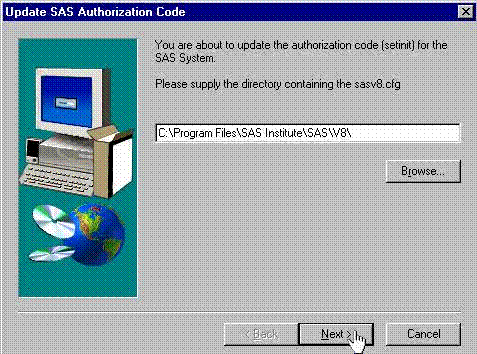
2. The Update SAS Authorization Code dialog box opens up asking for the
path to SAS
Configuration file. If you installed SAS on your C: drive
(default), the path should
automatically show up as C:Program FilesSAS
InstituteSASV8. Click Next button.
Otherwise enter the correct path first.
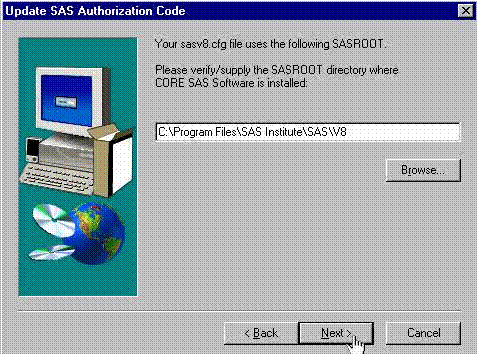
3. Then you ll be asked for the path to SASROOT directory, which is the
location of SAS.EXE.
The default path is C:Program FilesSAS InstituteSASV8.
Click Next button. Otherwise
provide the right path before doing so.
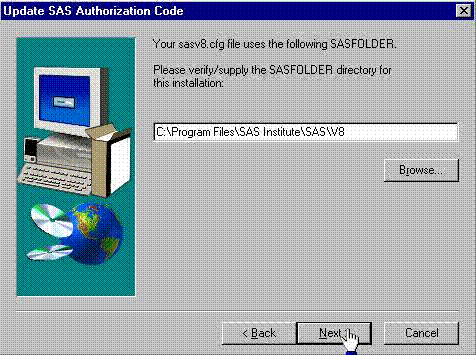
4. Then you ll be asked for the path to SASFOLDER directory. You just need to
click Next
button if you installed SAS on C: drive (default). Otherwise
put in the right path.
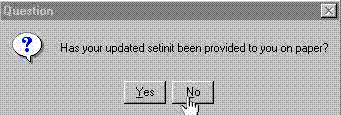
5. A dialog box came up asking if your setinit has been provided on paper.
Click No button.
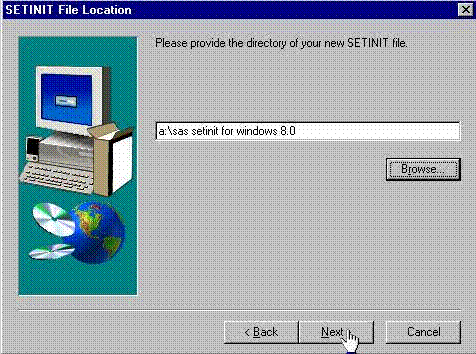
6. The SETINIT File Location dialog box opens for you to provide the path
to the setinit file.
Click Next button after the correct path (drive and file name) is entered.
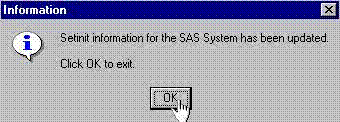
7. SAS will run the update and notify you that the setinit information has
been updated. Click
OK to exit.
8. You have now completely updated the SETINIT.SAS file.